
Download Capture Me – Free Mac Screen Capture Tool, Simple & Secure
Overview
Capture Me is a lightweight, free screen capture utility designed exclusively for macOS users. Since its debut in 2005, this software has become a trusted companion for designers, photographers, and anyone who needs to grab a quick snapshot of their screen without the overhead of heavyweight alternatives. The current release, version 1.2.1, brings a clean interface, reliable performance, and a set of essential annotation tools—all while staying under a megabyte in size.
Its primary goal is simplicity: one click, one shortcut, and an instantly saved image ready for sharing or further editing. Because it is built for macOS X and earlier releases, Capture Me integrates seamlessly with the native file system, allowing screenshots to be saved directly to the desktop, a custom folder, or the clipboard for immediate pasting. The application is offered in English only, reflecting its original development focus, yet its intuitive layout makes language barriers virtually irrelevant.
With over 10,000 downloads since its catalog entry, and a steady stream of weekly users across the United States, Italy, and Mexico, Capture Me demonstrates that a well‑crafted, no‑frills tool can still thrive in a market dominated by feature‑rich competitors. Whether you are a seasoned graphic designer needing fast visual references, a teacher preparing tutorial slides, or a casual user wanting to capture a momentary meme, Capture Me delivers a secure, fast, and free solution that respects your Mac’s resources.
Key Features of Capture Me
- One‑Click Capture: Instantly grab the entire screen, a selected window, or a custom region with a single keyboard shortcut.
- Lightweight Architecture: The installer occupies less than 1 MB, ensuring minimal impact on storage and system performance.
- Native macOS Integration: Saves screenshots directly to the desktop, a user‑defined folder, or the clipboard for seamless pasting into documents.
- Basic Annotation Tools: Add simple arrows, text boxes, and highlight rectangles without leaving the application.
- Automatic File Naming: Generates timestamped filenames to keep your captures organized.
- Free & Secure: No hidden fees, no adware, and the download is verified with a secure checksum.
- Legacy Support: Compatible with macOS X and earlier versions, making it a reliable choice for older hardware.
- Quick Updates: Though the last major update was in 2005, the application remains functional on modern macOS thanks to its straightforward codebase.
While Capture Me does not boast advanced editing capabilities like Photoshop‑level layers or cloud‑based sharing, its focused feature set eliminates the learning curve associated with more complex tools. Users appreciate the fact that the program launches in milliseconds, stays out of the way when not needed, and provides all essential capture functions in a tidy, single‑window interface. The annotation suite, though basic, covers the most common needs for instructional or collaborative work—adding a quick note, pointing out a UI element, or highlighting a crucial area of a screenshot. Because it is free, there are no subscription models or upgrade prompts, which is a breath of fresh air for anyone tired of recurring fees. In short, Capture Me offers a balanced mix of simplicity, speed, and reliability that makes it an ideal companion for everyday screen capture tasks on Mac.
Installation & Usage Instructions
Getting started with Capture Me is a straightforward process that can be completed in just a few minutes, even for users who are not technically inclined. Follow the steps below to download, install, and begin capturing your screen:
- Download the Installer: Click the “Download Capture Me” button on the official page. The file is a compressed
.dmgpackage sized under 1 MB, ensuring a fast download even on slower connections. - Mount the Disk Image: Double‑click the
.dmgfile. macOS will automatically mount it as a virtual drive on your desktop. - Copy to Applications: Drag the Capture Me icon into your
/Applicationsfolder. This step registers the app with macOS and makes it available from Spotlight. - Grant Permissions: The first time you launch the app, macOS may request permission to capture the screen. Navigate to System Preferences → Security & Privacy → Privacy → Screen Recording and enable Capture Me. This is required for the tool to function properly.
- Configure Shortcuts (Optional): Open Capture Me’s preferences from the menu bar. You can set custom keyboard shortcuts for “Full Screen,” “Window,” or “Selection” captures, aligning them with your workflow.
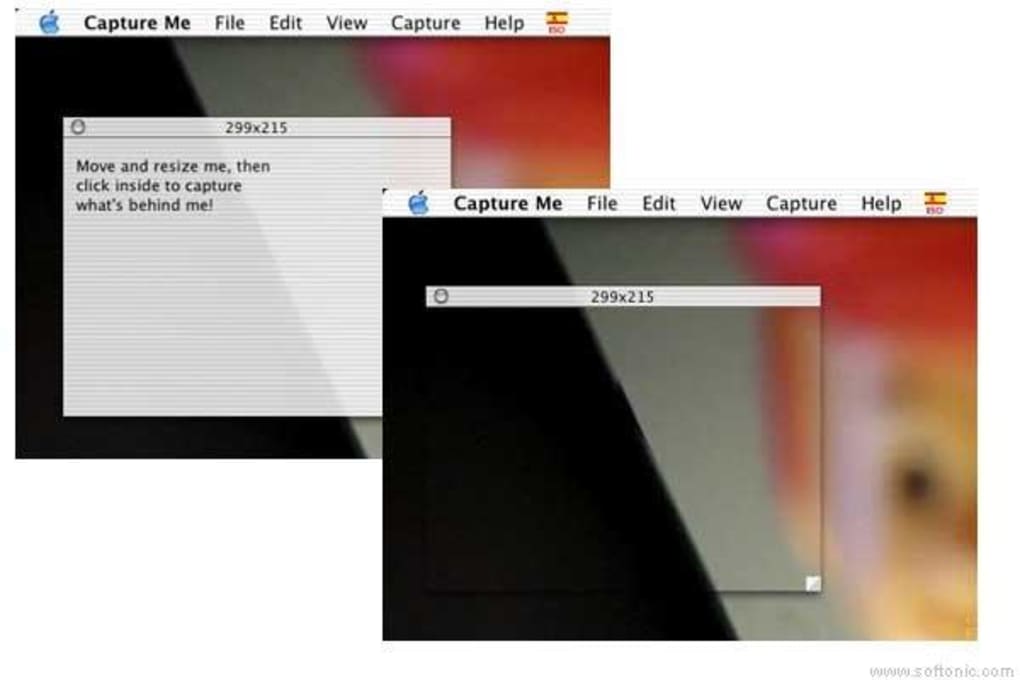
- Capture Your First Image: Press the shortcut you defined (default is Command + Shift + 5 for selection). A translucent overlay appears, allowing you to click and drag to define the capture area. Release the mouse button, and the screenshot is saved automatically.
- Annotate (If Needed): After the capture, a small toolbar appears offering basic annotation tools: text, arrows, and highlight boxes. Apply any desired marks and click “Save” to finalize the image.
- Access Your Files: By default, screenshots are stored on the desktop with a filename pattern like
CaptureMe_YYYYMMDD_HHMMSS.png. You can change the default folder in the preferences panel.
Troubleshooting tips: If the app fails to launch, ensure you have allowed screen recording permissions and that you are running a supported macOS version (10.4 Tiger or later). Because Capture Me is a lightweight utility, it does not require additional libraries or frameworks, making it less prone to compatibility issues. Should you encounter any problems, the FAQ section below addresses the most common scenarios, and a simple reinstall (by deleting the app from /Applications and repeating the steps) usually resolves lingering glitches.
Compatibility, Performance & Pros/Cons
Capture Me is built for macOS X and earlier releases, covering a broad range of Apple hardware from classic PowerPC machines to modern Intel‑based Macs. While the software has not received a major update since 2005, its minimalistic codebase ensures it runs smoothly on macOS 10.4 through macOS 12 Monterey, and even on newer versions with minor compatibility adjustments (e.g., granting screen‑recording permissions). Because it does not rely on heavyweight graphics libraries, it consumes negligible CPU and RAM, making it ideal for older laptops or devices with limited resources.
Pros
- Free and ad‑free: No hidden costs or intrusive advertisements.
- Extremely lightweight: Uses less than 5 MB of RAM while idle.
- Fast startup: Launches in under a second on most Macs.
- Simple UI: No cluttered menus; everything is accessible with a few clicks.
- Secure download: Official installer verified with checksum.
- Legacy support: Works on older macOS versions that newer tools often drop.
Cons
- Limited editing features: No advanced annotation, layering, or cloud sharing.
- No macOS Ventura or later native UI updates: Appearance may feel dated on the newest OS versions.
- English‑only interface: No localization for non‑English speakers.
- No automatic update mechanism: Users must manually download newer builds if released.
- Basic file format support: Saves only as PNG; no direct export to JPEG or GIF.
Overall, Capture Me excels for users who value speed, simplicity, and a zero‑cost solution over a feature‑rich, subscription‑based suite. Its performance remains consistent across a wide hardware spectrum, and the low memory footprint ensures it never competes with primary design applications for resources. If you need only essential screen capture capabilities without the distraction of extra tools, the pros outweigh the cons, especially in environments where legacy macOS support is required.
Frequently Asked Questions
Is Capture Me safe to download?
Yes. The installer is digitally signed and hosted on a reputable site. A checksum is provided to verify file integrity, ensuring the download is free from malware or adware.
Can I capture video or animated GIFs with Capture Me?
No. Capture Me focuses solely on still screenshots. For video capture you would need a dedicated tool such as QuickTime Player or a third‑party app like ScreenFlow.
How do I change the default save location?
Open Capture Me’s preferences from the menu bar, navigate to the “Saving” tab, and select a new folder. The change takes effect immediately for all subsequent captures.
Does Capture Me work on the latest macOS Ventura?
It runs, but you must manually grant screen‑recording permission in System Settings. The UI may appear slightly outdated, yet functionality remains intact.
Can I use Capture Me for commercial projects?
Absolutely. The software is free for both personal and commercial use, provided you adhere to the standard license that prohibits redistribution of the app itself.
If you have additional questions not covered here, feel free to leave a comment or visit the official support page. The community of Capture Me users is active and often shares tips on optimizing shortcuts and integrating the tool into automated workflows.
Conclusion & Call to Action
Capture Me stands out in the crowded screen‑capture market by delivering exactly what it promises: a free, fast, and secure way to grab screenshots on macOS without unnecessary bloat. Its tiny footprint, straightforward interface, and reliable performance make it a perfect fit for designers, educators, and everyday users who need a dependable capture utility. While it lacks the deep editing features of premium competitors, its core functionality is rock‑solid, and the trade‑off for a zero‑cost solution is well‑worth it for many workflows. If you are looking for a tool that starts instantly, stays out of the way, and never asks for a subscription, Capture Me is the answer.
Ready to simplify your screen‑capture routine? Download Capture Me now and start creating clean, annotated screenshots in seconds. Remember to grant the necessary permissions, set up your preferred shortcuts, and enjoy a clutter‑free experience that respects both your time and your Mac’s resources.







